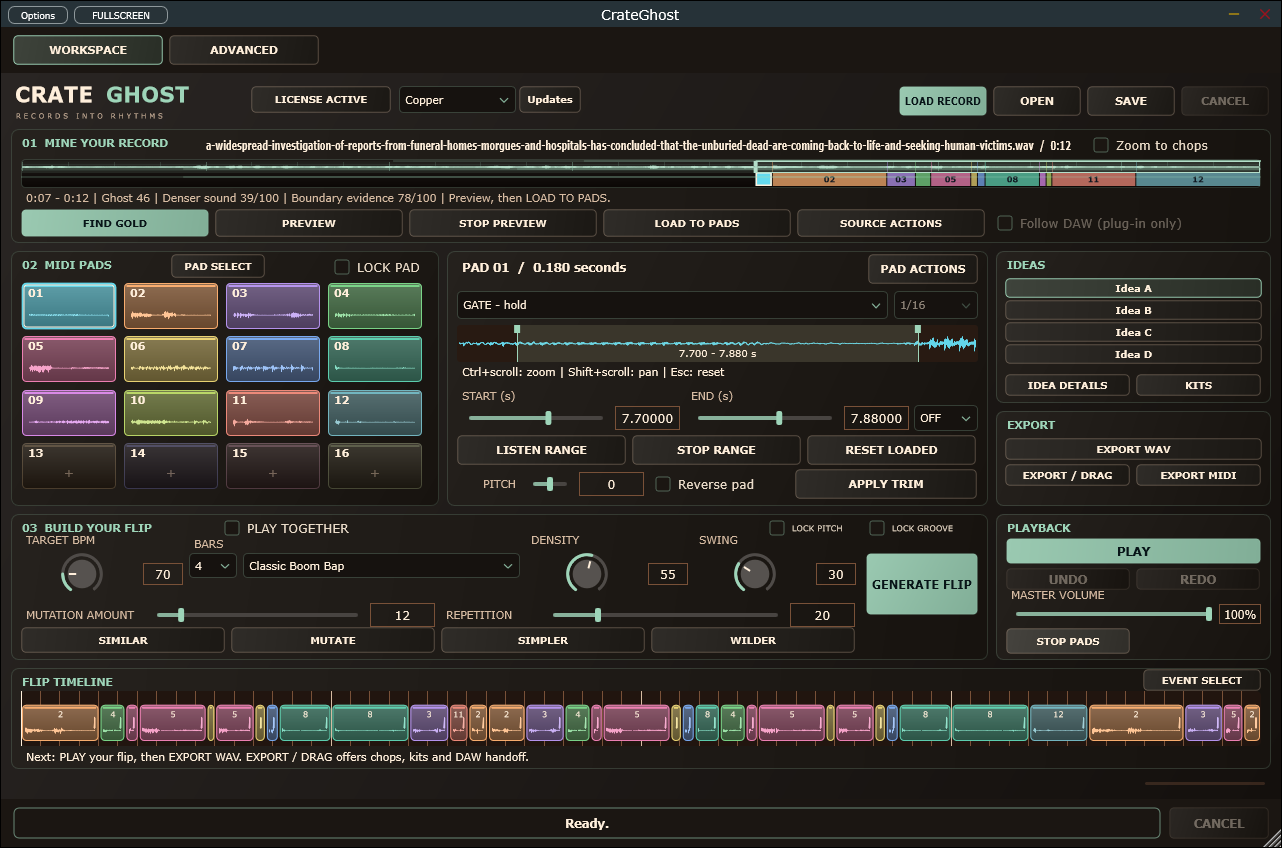
CrateGhost 1.5.10 standalone interface on Windows. View full size
CrateGhost compatibility
Current release packages
Requirement
Windows
macOS
Current version
1.5.10
1.5.10
VST3
Yes
Yes
Audio Unit (Logic Pro)
—
Yes
Standalone
Yes
Yes
Processor
x64
Apple silicon (arm64)
Minimum OS
Not specified
macOS 14.0
Installer signing
Yes
Developer ID
Apple notarization
—
Yes
Intel Macs are not supported. See the installation guide for feature differences and host requirements.
One installer, trial to paid
The Windows and Mac installers include a full-feature 14-day trial. Activate your purchased CrateGhost key during or after the trial to unlock the same installation. No reinstall or separate paid installer is required.
Apple silicon (arm64), macOS 14 or newer; Intel Macs are not supported. Mac installer: CrateGhost-1.5.10-macOS.pkg. Windows installer: CrateGhost-1.5.10-Windows-x64.msi. Available now for Windows and Apple silicon Mac. Download the free 14-day trial or buy CrateGhost. The Mac PKG and its app, VST3 and Audio Unit bundles are Developer ID signed. Apple notarized the installer, and its ticket is stapled.
Save your work and quit CrateGhost and any DAW using its plug-ins. Compare the downloaded PKG with its matching .sha256 file.
Double-click CrateGhost-1.5.10-macOS.pkg, follow the macOS Installer steps and authenticate as an administrator when asked. There is no ZIP extraction or install.command step.
The installer places CrateGhost.app in /Applications, CrateGhost.vst3 in ~/Library/Audio/Plug-Ins/VST3, and CrateGhost.component in ~/Library/Audio/Plug-Ins/Components. Installation notes and activation help are in /Library/Application Support/EgoB/CrateGhost/.
The VST3 and Audio Unit install for the current logged-in Mac user. Restart and rescan your DAW in that account. Check that it loads the new per-user plug-ins before removing any older system-wide copies of this product.
Open the app from /Applications. Enter the product’s receipt key in ACTIVATE LICENSE when applicable; installation does not activate a license. Saved projects, preferences and existing activation data are preserved.
To uninstall, quit the app and affected DAWs, then remove this product’s app, VST3 and Audio Unit bundles from the app and per-user plug-in locations above. On Windows, use Installed apps. A normal first-open confirmation or audio-input permission prompt may still appear on Mac. If macOS says the publisher cannot be verified, check that you have this current notarized PKG and its matching checksum; contact info@egob.be if the warning persists.
Logic Pro: Audio Unit installation
Restart Logic Pro after installing the PKG. Load CrateGhost as a software instrument through its Audio Unit. The included AU was validated before final Developer ID signing; individual Logic sessions and audio acceptance have not been repeated for this PKG.
A record. Sixteen pads. Your next idea.
From a good passage to your first flip.
Launch price: €49 Regular price planned at €79.
Find a passage in a recording, slice it into playable pieces, and turn those pieces into a new rhythm. Keep what works, explore variations, then take the result into your DAW.
CrateGhost opens empty. Load a recording to begin, or use OPEN to restore a saved project. DAWs retain normal session recall.
Open CrateGhost and load a record.
Run the standalone app, then click LOAD RECORD. Wait for the waveform and pads. Standalone uses manual PLAY / STOP; Follow DAW is available only in the plug-in. If you cannot hear a pad, choose your output device in the standalone Options menu.
Listen to the pieces.
Click a few numbered pads. Each plays a slice of the source; a new pad cuts off the previous one. Loading a source prepares chops but does not generate a pattern.
Choose a feel and generate.
Select Classic Boom Bap or Soul Chop from the style menu above the generation controls. Keep 4 bars for a first try. Click GENERATE FLIP, then PLAY.
Keep one idea and try another.
Click B to copy your current idea into a second slot; A is retained automatically. Click SIMILAR for a close variation. Switch between A and B to compare. Slot changes restart internal playback at the beginning.
Save the project and export.
Choose the slot you want. Click SAVE for a .crateghost project and EXPORT / DRAG for the finished audio. Saving the project keeps all four slots.
A useful distinction: a chop is a piece of source audio, a pad plays that chop, and a pattern event tells a pad when and how long to play.
01 / SETUP
Open & connect
Standalone
Run CrateGhost-1.5.10-Windows-x64.msi.
Launch CrateGhost from the EgoB folder in the Start menu.
Use the standalone Options menu to choose an audio output and enable your MIDI input if you have a controller.
Use CrateGhost’s PLAY button for pattern playback.
Inside a DAW
The Windows MSI installs the complete CrateGhost VST3 bundle in the standard system VST3 folder.
Rescan and load CrateGhost on an instrument track.
Route your keyboard or MIDI clip to that track.
Use the internal player, or deliberately enable host-follow playback as described below.
Following the DAW’s transport
Tape / Stretch selects the pitch/time behavior. Tape retains the original speed-linked sound. Stretch fits chops from SOURCE BPM to TARGET BPM independently of global and per-pad pitch. Correct the source grid before choosing Stretch. Use MATCH DAW to copy the host tempo.
Follow DAW follows host tempo, transport and play position. In Stretch mode, tempo changes prepare audio in the background without changing pitch. The loop briefly pauses while preparing, then resumes at the current host position. Use a steady DAW tempo from 40 to 200 BPM; continuous ramps are not seamless.
In Tape mode, a host tempo different from TARGET BPM changes pitch as well. Choose Stretch for independent pitch and tempo. When playing an exported MIDI clip through CrateGhost, stop the internal player and leave Follow DAW off to avoid hearing two performances.
02 / THE INTERFACE
Three areas, one workflow
Mine your record: load audio, browse passages or drag your own range, correct its timing and rebuild the chops.
Play & shape chops: audition sixteen pads and edit their trim, sound or MIDI mapping.
Build your flip: choose a style, generate a pattern, lock notes, explore variations and select an A/B/C/D slot.
The bottom row contains playback, undo, extra groove controls and exports. The status line reports progress and explains rejected operations. CANCEL stops a background job while retaining the previous completed result.
03 / SOURCE & CHOPPING
Choose & chop a passage
Click LOAD RECORD, or drop one WAV, AIFF, FLAC or MP3 file onto the editor.
Open FIND GOLD for ranked Best/Sparse results, or drag across any part of the top waveform to select your own range. Drag left or right; a new drag replaces the selection. The orange outline marks the reviewed range. PREVIEW auditions it; LOAD TO PADS rebuilds the pad bank.
Audition the pads. The bottom waveform strip shows loaded chops; click any enabled chop to select its pad. A waveform click also places the first-beat cursor, then SET FIRST BEAT and RECHOP. Use Zoom to chops for a closer view.
If the slices fall in the wrong places, correct SOURCE BPM and GRID OFFSET (s), then press RECHOP.
FIND GOLD opens the ranked browser. Choose Best or Sparse passages; rows show time range, suggested role, rarity, Ghost Score, Musical Value, Flipability and Target Fit. WHY THIS shows descriptors, penalties and bounded one-second transformation probes; these are signal checks, not listener ratings. Set a desired role, key/mode, mood and drum density. APPLY TARGET saves preferences without generating. LOAD TO PADS also saves pending target choices. Optional simpler chops for busy samples applies only on explicit Generate. PREVIEW plays the original source, STOP PREVIEW ends it, and LOAD TO PADS loads the chosen range; double-click / Enter previews it. Filtering and preview do not change your chops or flip. Sparse scores combine quiet space, spectral concentration and onset occupancy; silence is excluded. Similar passages are grouped heuristically.
The score is a rough aid for finding candidate passages, not a guarantee of musical quality. The source tempo estimate can be wrong, especially with drifting or ambiguous rhythms. Use your ears when choosing a passage.
Chop mode
What it does
Try it when…
Hybrid
Starts from the beat division and moves nearby boundaries toward detected attacks.
You want regular slices with some attack alignment.
Grid
Cuts at the chosen beat division.
The source timing is steady, or you want predictable rhythmic pieces.
Transient
Cuts around detected attacks, using sensitivity and minimum spacing.
The passage has clear, separate hits or notes.
Phrase
Uses nearby rhythm, energy, spectral and harmonic-profile boundaries, with local energy dips as a fallback.
You want longer pieces. This is an initial heuristic, so check its boundaries.
The division menu offers ¼ beat, ½ beat, 1 beat, 2 beats and 1 bar. Choose the mode and division, then press RECHOP.
Chop options
Transient sensitivity: raise it to include weaker attacks in Transient mode.
Minimum / maximum chop: limit slice duration. Too-short or unused slices become inactive and display EMPTY.
Snap boundaries to nearby zero crossings: adjusts boundaries slightly to help soften cut edges.
Use APPLY & RECHOP in the options popup. Rechopping keeps pad sound settings, but changes the source pieces those pads play. All pattern slots share that pad bank.
04 / THE SAMPLER
Shape & play pads
Click a pad to select and audition it. The selected pad’s controls appear on the right. Use the page menu to switch between Trim / pitch, Sound / MIDI and Chop roles.
Trim / pitch
Set START and END in source seconds; select Reverse pad if wanted, then press APPLY TRIM.
PITCH is global: it affects every pad. Dragging and releasing it re-renders the current pattern. In Tape mode, higher pitch shortens playback and lower pitch lengthens it. In Stretch mode, pitch changes leave the tempo-matched duration unchanged.
Sound / MIDI
Adjust LEVEL, PAN, PAD PITCH, ATTACK and RELEASE, choose gate or one-shot behaviour, or edit the MIDI note. Press APPLY SOUND.
These sound settings belong to the pad and are shared by every pattern slot.
Control
How to use it
Level & pan
Balance the selected pad’s volume and left/right position. Level 0 mutes it.
Pad pitch
Tune just this pad, up or down twelve semitones. Tape mode also changes duration; Stretch mode keeps duration independent of pitch.
Attack & release
Use a longer attack for a softer onset or a longer release for a gentler ending. Values are in milliseconds.
One-shot off (gate)
A MIDI note-off releases the pad. In a pattern, its event length controls the gate.
One-shot on
Ignores MIDI note-off and plays through until the pad ends or another pad chokes it. The next pattern event still cuts it off.
Chop roles
Select a pad and open Chop roles. Auto shows a suggestion from duration and edge energy. Override it with Anchor, Answer, Pickup, Turnaround, Fill, Stab or Tail, then press GENERATE FLIP. Selecting a role alone keeps the current notes and audio unchanged and supports Undo/Redo.
Anchors open bars; answers enter the second half; pickups lead into another bar; fills add late-bar detail; stabs add accents; turnarounds and tails close the final bar. Manual choices take priority for their role. Heavy Stabs/Micro Chop favour stabs; Smooth Loop favours answers/tails. Missing roles fall back to available chops. These are preferences, not exclusive pad restrictions, and sparse phrases may omit some roles.
Roles are shared across A/B/C/D and survive RECHOP; Auto follows the new chop. LOCK PAD blocks role editing. Existing note/beat/bar/dimension locks take precedence. Custom uses role grammar when any manual role is assigned. Similar/Mutate keep their existing behaviour. Suggestions remain heuristics for you to review by ear.
Playback controls
MUTATION OPTIONS and MORE GROOVE now occupy separate full-width rows directly below TIME & GROOVE in Playback. Scroll in compact windows to reach them. Their existing actions remain the same.
Time & Groove
Open TIME & GROOVE directly below ADVANCED and SOUND & FEEL in Playback. Choose Stretch for independent source/target tempo and whole-flip pitch. Review Straight, Swing from MORE GROOVE, or four Custom offbeat positions (25-75%), and set strength. Press APPLY TIME & GROOVE, then audition with pads or PLAY; Undo/Redo compares results. Closing without Apply discards edits.
Swing copies MORE GROOVE on Apply. Custom repeats every four source beats; 50% is straight and 66.7% is triplet feel. Chop ends and manual beat anchors stay pinned. Straight/zero strength are neutral, not automatic unswing. Existing notes stay unchanged; new Generate omits shared event swing while audio groove is active. Other human timing settings still apply.
Global Apply refuses protected music, including locks in saved ideas. Follow DAW owns target tempo while enabled. Preparation may pause playback. WAV and resampling retain the audio warp; resampling clears baked groove on the new source. MIDI does not carry audio warps. Formants and continuous live modulation remain outside this candidate. See manual validation in the packaged documentation.
Style-aware Discovery
Select a style, then open FIND GOLD. Nine named profiles, including Trip Hop, weight existing sample-role and discovery evidence. WHY THIS separates the base selected-role score, preference factor and final discovery rank. Sparse passages adds a sparsity filter while using the same rank.
ADVANCED > STYLE DETAILS edits a copy of seven generation values, six role weights and eight discovery preferences. APPLY CUSTOM saves the named profile in the project; EXPORT STYLE / IMPORT STYLE shares an individual JSON file. Import stops for review. Profiles are shared across A/B/C/D. A named style preserves an explicit groove base; Apply Custom owns the seven displayed values and marks the groove Custom. Generate and Rechop remain deliberate actions.
Search Quality offers Any character, Pristine, Character, Damaged, using measured clipping/brightness only. Dark / long tail is a brightness/decay proxy, not atmosphere detection. Missing evidence stays neutral and existing quality gates remain. Save the choice with APPLY TARGET or LOAD TO PADS.
Schema 14 saves resolved profiles. Old projects retain legacy ranking until a profile is selected/applied; saved notes and audio are not regenerated. The original eight generation presets remain; Trip Hop adds a spacious starting preset. Full style grammar, Tail Reverse, Ghost Repeat and new FX remain planned. The owner will perform manual functional, listening, UI and host validation of this candidate.
Sound & Feel
Open SOUND & FEEL in Playback. Tone / Voices offers an optional low cut, high cut, compensated oversampled drive and AGE (darker filtering plus saturation). Enable eight-voice polyphony and choose Free overlap or choke group 1-4 for the selected pad. Matching groups and repeated notes on a pad choke; oldest voices are replaced when all eight are used. Tone is heard in pads and processed exports; original preview and dry slices stay dry.
Timing / Key: enter increasing seconds, beat pairs, one per line, with beat 0 as a downbeat. For example 0, 0, 2, 4, 4.1, 8 map a slowing passage. ADD WAVEFORM CURSOR inserts its time for you to edit. Use 2-128 anchors, local tempos 40-240 BPM. The grid, Rechop and Stretch follow this map; Tape keeps its pitch/speed relationship. Clear all anchors for fixed SOURCE BPM. Review the key suggestion by ear; ambiguous audio shows Unknown. The editable source-key override applies to the whole record and informs scoring. MATCH TARGET KEY proposes whole-flip pitch, committed only on Apply, and cannot change major into minor.
Phrase / Cuts: Phrase Flow favours compatible joins and longer musical gestures, connecting redundant retriggers only when enough source audio exists. Musical cuts refine nearby Phrase/Grid seams; Hybrid retains transient alignment. APPLY saves settings and sound. GENERATE FLIP changes notes; APPLY & RECHOP changes unlocked cuts. Existing locks and Undo/Redo remain. Older projects retain their saved sound. These tools require listening review; automatic drift detection, multi-output routing and host automation are separate work.
Connect a MIDI pad or keyboard
Enable the controller in standalone Options, or route it to CrateGhost in your DAW.
Select a CrateGhost pad and open Sound / MIDI.
Click MIDI LEARN, then play the controller note you want to assign.
Wait for the assignment to save. The pad button shows its MIDI note number.
Default notes are 36–51, accepted on any MIDI channel. You can also enter a note number and press APPLY SOUND. Assigning an already-used note swaps the two pad mappings. Clicking MIDI LEARN again for the same pad disarms learning.
By default CrateGhost plays one chop at a time. SOUND & FEEL can enable eight voices with configurable choke groups. Clicking a pad auditions its full chop; use MIDI or pattern playback to hear gate behaviour.
FIND GOLD and waveform suggestions now default to passages of at least four seconds. Choose STAB or ONE SHOT explicitly for short samples. You can still drag any manual range or trim individual chops freely.
05 / COMPOSITION
Generate your groove
Generate builds a recurring phrase from neighbouring chops, with a statement, development, answer and return. Repetition keeps more of the statement. Pitch variation uses octaves; pitch and reverse choices repeat with the motif. Your manual chop roles take priority.
With Dropouts at zero, ordinary short chops continue into another chop when their audio runs out. These continuation notes appear in the editor and exports. Very short micro slices, natural source silence and locked rests can still leave space. Reopen or reload the source for the new FIND GOLD seam and chop analysis, then explicitly Generate to hear the new phrase policy.
Choose a style, set your target tempo and bar count, and click GENERATE FLIP. Each click uses a new seed to create another interpretation. The generated pattern appears below the controls; press PLAY to hear it.
Style
Starting behaviour
Classic Boom Bap
Balanced density, repetition and swing.
Dusty
Looser timing, more swing and a few gaps. It changes generation behaviour, not an ageing effect.
Soul Chop
Longer gates and stronger repetition, with answer and turnaround rules.
Jazz Chop
More syncopation and less repetition. It does not detect harmonic compatibility.
Sparse
Low density and more dropouts.
Heavy Stabs
Short gates with a preference for shorter chops.
Smooth Loop
Long gates, high repetition and a preference for the longest available chop.
Micro Chop
Higher density, very short gates and more variation.
Custom
Keeps the current control values and uses the original generation behaviour.
A style supplies a starting point; you can adjust the controls afterwards. It does not regenerate your current pattern just by being selected.
The main controls
TARGET BPM: the tempo of the rendered pattern, from 40 to 200 BPM.
Bars: choose 1, 2, 4 or 8 bars of 4/4.
Density: influences how busy the pattern is.
Repetition: influences how often the generator reuses its motif.
Swing: adds an uneven rhythmic feel.
More Groove
Complete groove bases: selecting a named base sets all eleven faders immediately, including syncopation, chop length, dropouts, reverse and pitch probabilities. Tight deliberately resets dropouts/reverse/pitch to zero. Other bases add varying amounts, from subtle Late (6% / 3% / 5%) to Drunken (22% / 20% / 25%). Custom keeps your current values. Press APPLY SETTINGS, then GENERATE FLIP to hear the result. Previously saved projects retain their settings until you choose a base.
Note editing: Right-click a note in the bottom chopped grid. Pitch shift offers -12 to +12 semitones, added to pad/global pitch; 0 retains the pad pitch. Reverse this note toggles direction relative to the pad. Sample number chooses an active pad (1-16); empty pads are disabled. Lock note / Unlock note remains in the menu. Edits apply immediately to only that note, support Undo/Redo and save with projects/slots. Locked notes/beats/bars must be unlocked first; LOCK PITCH protects pitch/sample choice. LOCK GROOVE allows sound edits while keeping timing. Empty-space right-click does nothing.
Standalone volume & fullscreen: MASTER VOLUME in the Playback panel controls loop, pad/MIDI and passage-preview listening level. 0% mutes; double-click restores 100%. Changes are smoothed, and the setting is saved on normal exit. WAV export and DAW output keep their original level. Click FULLSCREEN in the standalone title bar or press F11 to fill the current monitor. Escape, F11 or EXIT FULLSCREEN restores the previous window size. This uses the shared EgoB fullscreen window, including recovery after native file dialogs.
Groove bases: MORE GROOVE offers Tight, Loose, Late, Lazy, Heavy Swing, Push/Pull and Drunken groove bases. Choose a base, adjust its controls, Apply, then Generate. Apply alone leaves the current flip unchanged. Bases set all eleven faders, including syncopation, chop length, dropouts, reverse/pitch, swing, humanise, timing feel, velocity limits and gate variation; styles also set swing/humanise. Reselect a base to restore its defaults. Custom / legacy keeps the controls with the original timing base.
Push / pull moves offbeat eighths up to 0.12 beats early (negative) or late (positive). Push/Pull also moves quarter accents oppositely at half strength. The opening downbeat stays fixed. Minimum / Maximum velocity bound new and changed notes; locked and untouched notes keep their saved values. Equal bounds give fixed velocity. Gate variation shortens generated gates by up to 90%; one-shot pads ignore gates. Existing locks remain exact. Groove controls are shared across A/B/C/D.
Open MORE GROOVE for Syncopation, Humanise timing / velocity, Chop length: short to longDropouts, Reverse events and Pitch events. Apply the settings, then press GENERATE FLIP.
Increasing dropouts removes events; at 100%, an unlocked generation keeps only its opening anchor. Locked material is retained. Longer gates are bounded by the next event and the pattern end.
Reverse flips direction relative to the pad. Pitch chooses -12, -7, -5, +5, +7 or +12 semitones, added to global/pad pitch. Zero leaves newly generated notes neutral; 100% transforms every newly generated unlocked note. Existing untouched or locked notes retain their values. These controls also apply to notes changed by Similar, Mutate and Wilder.
Edit the pattern by hand
Select a pad, then click an empty pattern step to add it. Click an occupied step to remove its event. Edits use quarter-beat steps. Use UNDO and REDO for up to 100 completed changes. Ctrl/Cmd+Z undoes; Ctrl/Cmd+Shift+Z or Ctrl+Y redoes. New edits clear Redo. Successful Load/Open starts fresh history; history is not saved across app restarts.
CG-N02: keep useful ideas
Compact workspace: Compact mode fills the window. On wide displays the taller waveform sits above pads and flip controls side by side; smaller windows keep stacked panels and scrolling. Advanced stays optional.
MUTATION OPTIONS lets you select sample, pitch, reverse, velocity and gate changes. Unchecked dimensions stay exact and locks win. These options affect variations, not ordinary Generate. All off disables variation. Simpler requires all five options; Wilder adds notes only with all five. Pitch/reverse still use More Groove probabilities.
IDEA DETAILS names and favourites the active A/B/C/D idea, with local Keep/Reject feedback. Save the project to keep these labels. Each idea owns its pattern and locks; pad sound, source, tempo and generation controls are shared. Save a project for a complete sound snapshot. No automatic learning is performed.
ADVANCED opens the detailed grid and pad controls. The compact workspace keeps the first-flip actions together; use the scrollbars in smaller windows. Keyboard focus scrolls into view.
06 / KEEP WHAT WORKS
Variations, locks & slots
Action
What changes
What stays
Generate Flip
Builds a new interpretation using the current generation settings.
Event, beat, bar and dimension locks.
Similar
A small subset of unlocked pad choices, velocities and event effects.
Timing, lengths, existing chop vocabulary and locks.
Mutate
Some unlocked pads, velocities, lengths and event effects; can use other active pads.
Event start times, opening anchor and locks.
Simpler
Removes alternate eligible unlocked events.
Opening anchor and locked content.
Wilder
Mutates and adds notes in available gaps.
Opening anchor and locked content.
Lock pads and musical dimensions
LOCK PAD protects the selected chop boundaries, sound controls and MIDI mapping. Rechopping leaves it intact even when other pads load another passage; unlock before editing it. Global tempo and pitch still apply to the instrument.
LOCK PITCH retains event pitch offsets and pad choices. LOCK GROOVE retains exact note starts and gates. Either keeps the note count: Generate varies existing notes, Simpler leaves the pattern unchanged, and Wilder varies without adding notes. Unlock to reshape the rhythm. These locks govern mutation; deliberate global sound/tempo edits remain available.
Lock a note, beat or bar
Right-click a visible note and choose Lock note / Unlock note. A white line above it marks the lock. Hold Shift and click a bar to toggle a whole-bar lock; its background is tinted and marked LOCK. Alt-click a beat to lock that beat, including its empty positions; a green strip marks it. Choose Unlock note or repeat the beat/bar gesture to unlock.
Event locks protect the note’s pad, start time, duration, velocity, pitch and reverse. Beat and bar locks protect all events starting in their region and prevent added events there, including in empty parts. These locks survive Generate and every variation command.
Event/beat/bar locks do not freeze shared pad sound or tempo; use LOCK PAD to protect chop edits. If shortening the pattern would remove locked material, or rechopping would empty a locked note’s pad, unlock that content first.
Compare four ideas
Build an idea in A.
Click B. A is retained; if B was empty, it starts as a copy of A.
Try a variation in B, then switch back to A to compare.
Use C and D the same way, and SAVE the project when you want to keep the work.
Each slot keeps
Its transformed events, bar count, seed, event/beat/bar locks and pitch/groove locks. Switching slots retains the departing pattern automatically.
All slots share
The source, pad bank and sound settings, pad locks, MIDI mapping, tempo and current generation/probability controls. Changing a pad sound changes how that pad sounds in every slot.
Retaining a slot is not saving a project file. Use SAVE before closing the standalone app, or save your DAW project. Slot changes prepare audio in the background; MIDI-triggered slot switching is not available in this version.
07 / FINISH & RECALL
Save & export
Use
You get
Remember
SAVE / OPEN
A .crateghost project with settings, pad edits, MIDI mapping, slots and locks.
Keep the original source audio. The project references it rather than embedding it.
EXPORT / DRAG
The active slot rendered as stereo 44.1 kHz, 24-bit audio, with its pad processing.
Exports the prepared pattern, not a recording of live pad playing.
EXPORT MIDI
Channel-1 pad triggers with the current mapping, target tempo and 4/4 meter.
No audio is included. Event pitch/reverse are text annotations, not automatic MIDI playback commands. Use WAV for the exact sound.
Move a project to another folder or computer
Keep the .crateghost project and its original source file together. If the original absolute path is missing, OPEN also looks for the same audio filename beside the project. Changed source content is rejected; renaming a different recording to the same name will not relink it.
Standalone launch always starts empty. Use OPEN for saved projects. Older synthetic-source projects remain readable when opened explicitly.
Bring the flip into your DAW
Individual chops and kits
Choose Individual chop WAV and a sample number, or Chop kit for all active pads. Dry source slices retain original samples at the source rate/channels, without sound processing. Processed chops match full pad audition at 44.1 kHz, including global/pad pitch, reverse, envelope, level, pan and Tape/Stretch. Per-note pitch/reverse, velocity and gates belong to the flip, not the kit. All WAVs are 24-bit. Standalone listening volume does not change export.
Kits contain numbered WAVs and kit.json with pad/MIDI mappings, source bounds/hash, tempos and roles. Drag transfers the WAVs; OPEN FOLDER also exposes the metadata. Preparation runs in the background; CANCEL removes its partial output and preserves your music. Earlier ready exports stay intact.
Import the exported WAV onto an audio track for the rendered result. For editable pad triggering, import the MIDI onto a track containing CrateGhost, open the matching project, and use that MIDI clip to drive the pads. Stop CrateGhost’s internal playback and leave Follow DAW off for this MIDI workflow.
Open EXPORT / DRAG, choose a format and press PREPARE FILES. Drag the ready button into your DAW or use OPEN FOLDER. Unique export folders are kept in Documents / CrateGhost Exports; keep these files if your DAW references them. The panel captures the music when opened; reopen after editing. The separate EXPORT MIDI button still offers a save dialog. Earlier projects remain readable with their original Tape playback. Versions 1-7 remain readable with saved audio intact. New projects save chop roles, groove controls, mode, event effects and locks in version-8 state; playback starts stopped after recall.
08 / APPEARANCE
Change the skin
Open the Theme dropdown in the app header and choose Original, Graphite or Copper. CrateGhost uses the same skin choices and control styling as the other EgoB apps.
The choice is remembered for CrateGhost on this computer. It changes appearance only: music, exports and project state are unaffected, and another already-open instance keeps its own appearance.
The Guide skin dropdown at the top of this page previews these appearances in the documentation only.
REFERENCE
When changes take effect
Use this table if a control changes on screen but you are still hearing the previous result.
You change…
Apply it with…
Passage browser / waveform selection
Drag to select any source range, or choose a browser row. Selection and preview preserve music. LOAD TO PADS commits the range; SET FIRST BEAT then RECHOP applies the cursor.
Source BPM, grid offset, chop mode, division
RECHOP.
Sensitivity, chop limits, zero crossings
APPLY & RECHOP inside CHOP OPTIONS.
Start, end, reverse
APPLY TRIM on the Trim / pitch page.
Pad level, pan, pitch, envelopes, one-shot, MIDI note
APPLY SOUND on the Sound / MIDI page.
MIDI Learn
The next incoming note commits the mapping.
Target BPM / global pitch
Drag and release the slider to re-render. GENERATE FLIP also reads these controls.
Style, bars, density, repetition, swing
GENERATE FLIP. Choosing a style populates its settings first.
More Groove controls
APPLY SETTINGS in the popup, then GENERATE FLIP.
Variations, pattern edits, locks, slots
The action itself; wait for the background job to finish.
Theme
Select the skin; appearance changes immediately.
IF SOMETHING GETS IN THE WAY
Troubleshooting
I cannot hear anything.
In standalone, choose a working audio output in Options. Load a record and click a pad. For a pattern, generate one and press PLAY. In a DAW, check the instrument track’s output and MIDI routing. Also check pad level and whether the selected pad displays EMPTY. In older standalone builds, turn Follow DAW off if PLAY is disabled.
I hear the pattern twice, or it sounds unexpectedly busy.
You may be playing an exported MIDI clip while internal or host-follow playback is also running. Stop the internal player and disable Follow DAW when the MIDI clip is meant to trigger the pads.
The tempo or pitch sounds wrong.
SOURCE BPM describes the source grid; TARGET BPM controls the rendered pattern tempo. Correct the source grid and RECHOP if cuts drift. Tape mode links pitch and duration. Choose Stretch to fit chops to TARGET BPM independently of pitch; Match DAW copies the host tempo. Stretch works best with moderate tempo changes. A changing host tempo briefly pauses the loop while audio is prepared.
Some pads say EMPTY.
The chosen region or chop settings produced fewer than sixteen usable slices. Try a longer passage, lower the minimum chop length, increase Transient sensitivity, or choose Grid/Hybrid and RECHOP. The generator skips inactive pads.
My settings do not seem to change the current pattern.
Style and generation settings wait for GENERATE FLIP. Groove popup changes need APPLY SETTINGS first. Pad edits need APPLY TRIM or APPLY SOUND. Check the application table above for the relevant action.
Generate or a variation barely changes anything.
Check event and bar locks; a fully protected pattern can remain unchanged. SIMILAR deliberately changes only a small subset. Try MUTATE or a new GENERATE FLIP with fewer locks. SIMPLER and WILDER can only change eligible notes or available gaps.
A shortening or rechop operation is rejected.
Read the status line. Locked material may occupy a later bar or refer to a pad that rechopping would deactivate, including in a stored slot. Unlock the affected content or retain the current length/pad bank. A rejected background edit retains the previous completed result.
My source cannot be found when reopening.
Put the unchanged original audio beside the project using its original filename, then OPEN the project again. Alternatively restore it at its original path. A changed audio file does not satisfy the source identity check.
The source is too large, or low pitch exceeds an audio budget.
Use a source within the file limits below. For a prepared-pad budget error, shorten the chops or reduce downward pitch shifting; lower pitch needs more rendered audio. Keep your original recording and work from a shorter copy if necessary.
I changed a sound in B and it also changed A.
That is expected: slots store patterns, not independent sampler instruments. The source, chops, pad sound, tempo and MIDI mapping are shared. Save separate project files if you need different pad banks or sounds.
VERSION 1.5.10
Supported files & limits
Audio input: WAV, AIFF, FLAC or MP3; mono or stereo; 8–192 kHz.
Source size: 0.25 seconds to 10 minutes, up to 256 MiB of decoded audio.
Chops: up to sixteen, each up to sixteen source seconds; four minutes of total prepared pad and event-variant audio.
Playback: mono by default or optional eight-voice polyphony, four choke groups, four named idea slots and 100-action undo/redo.
Window: 640 × 440 to 3840 × 2160 logical pixels; starts at 1280 × 820 with scrolling.
Resampling: durable single-source branches, up to 32 generations deep; keep saved audio and original records.
Delivery: Windows x64 standalone and VST3.
This alpha does not include qualified seamless host tempo ramps, stems, generated drums, host automation, MIDI slot switching or arbitrary multi-source import in one pad bank. Phrase finding, key suggestions and style roles are heuristics; audition the result and edit it to suit your recording.
Chop options and zero dropouts
APPLY & RECHOP uses the beat division, chop mode, source BPM and grid offset currently selected in the editor.
Set Dropouts to 0, choose APPLY SETTINGS, then GENERATE FLIP for connected note gates through the loop end. At zero, automatic Chop Length and Gate Variation shortening is overridden. Locked notes and rests remain exact. A short or silent source chop can still finish before its gate; saved patterns remain unchanged until edited. Values above zero retain short gate shaping.
Compare passages across your record
FIND GOLD compares timbre, harmony and rhythm with other regions of your record. WHY THIS shows the closest matching passage and its time range. Overlapping windows count once, and nearby regions are excluded. COMMON, UNCOMMON, RARE and UNIQUE describe the compared candidates using provisional thresholds; without an independent comparison, rarity stays unknown. Reload audio for refreshed analysis, then review and explicitly load your chosen passage.
Compare transformation evidence
Export a score preset to adjust each role?s pitch, stretch, chop and reverse weights or choose its wide/compact probe matrix. Reload the preset, review the ranking and press APPLY TARGET to save it. WHY THIS compares both probe sets and their render cost, explains the tempo interpretation and shows key-fit confidence. The wider probes remain the default pending listening comparison. These are short-excerpt signal checks; audition the passage before choosing it.
Role-aware Find Gold
Loop, Chop Phrase, Stab, Texture, Vocal and Drum Break have separate scoring policies. AUTO shows supported roles; missing vocal/drum evidence is disclosed rather than guessed. Close scores show two roles. Recommendations still default to at least four seconds.
Use LOAD SCORE PRESET, EXPORT PRESET or RESET PRESET in Find Gold. Review the rankings, then APPLY TARGET to save the policy without changing your flip. Projects retain the full preset. WHY THIS includes role scores, gates, penalties and evidence coverage. Listen before judging musical quality.
Review, then commit
Use the single FIND GOLD for ranked results and Best/Sparse filtering, or drag a custom range on the waveform. Each new drag replaces the earlier selection. Ranked results show Musical Value, Flipability, Target Fit and Ghost Score, with WHY THIS reasons and weaknesses. Review the desired role, key/mode, mood and drum density; APPLY TARGET saves these choices without generating. Bounded offline pitch/stretch/reverse/reorder probes and a render at your saved destination settings provide signal evidence, not a guarantee of musical quality. Optional complementary generation simplifies chops for busy source audio when you press GENERATE. PREVIEW auditions the source. Only LOAD TO PADS commits it. Browser double-click and Enter preview; they no longer load.
Use 1/2 or x2 beside SOURCE BPM (40–240 BPM). Click below the heatmap, press SET FIRST BEAT, review the beat/bar markers and press RECHOP. Locks retain protected edits; conflicting changes fail without losing the last result.
MUTATION AMOUNT waits for an explicit variation. 0% preserves notes/audio; 100% uses the original behaviour. Higher amounts select nested eligible notes for Similar/Mutate with the same seed, not a guaranteed perceived difference. Pending feedback names the next Generate, Rechop or Apply action. Source and amount controls do not generate automatically.
Schema 11 adds named ideas, favourites, Keep/Reject and selective mutation. Schema 10 added saved discovery targets and selected bounds. Earlier schema 9 introduced custom passage bounds and mutation amount. Schemas 1-8 retain their saved chops and audio; schemas 1-7 default amount to 100%. Published Mac is 1.5.10 (standalone, VST3 and AU); this guide describes current 1.5.10 source and Windows release. External DAW/listening acceptance remains manual.
Time & Groove
Open TIME & GROOVE in Playback. Review Tape or Stretch, source and target BPM, whole-flip pitch, groove and strength, then press APPLY. Preparation runs in the background and may pause playback; Undo restores the previous settings. Follow DAW owns target tempo while enabled.
In Stretch, groove changes timing inside chops while preserving their duration and manual beat anchors. Choose Straight, Swing, Shuffle, Laid-back, Push or Custom. Straight is neutral; it does not remove recorded swing. Tape and zero strength leave audio groove inactive. Existing note positions stay in place; with audio groove active, Generate omits the shared event-swing pass.
Global Apply refuses protected pads, notes and timing/pitch locks, including saved ideas. Frozen pads retain their baked timing and sound. WAV and Ghost Resample use prepared audio; MIDI exports notes without the audio timing warps. Audition extreme stretches and dense mixes before exporting.
Ghost Resample: make a new generation
Open GHOST RESAMPLE in Export, choose the current flip or a processed pad, then PREPARE. Audio, the original project, a new project and lineage metadata are saved under Documents / CrateGhost Generations. Your current music stays in place.
USE AS SOURCE explicitly replaces the pad bank with chops from the rendered audio and clears the pattern/ideas. Undo restores the previous session. OPEN FOLDER provides both projects and the WAV. Keep the generation folder and the original record referenced by Original.crateghost.
Pitch and tone are baked into the WAV and reset. New chops apply fresh envelopes and level; very short pads are padded with silence to 250 ms. The monitoring fader is excluded. The flip keeps its target BPM grid; a pad uses that tempo as an editable starting point. Use FREEZE TO PAD below to keep a rendered sound in the existing bank. A generation browser remains planned.
Recovery and reliability (1.5.10)
If replacing a project fails, the last completed bank remains available and is used for DAW saves. If initial recall fails with no bank loaded, missing-media state is retained for recovery. Choosing a new load supersedes it. Missing or changed frozen audio errors identify the file to restore. Reopen Export after changing the session; preparation uses the current completed snapshot and waits until existing work is finished. MIDI All Sound Off stops active and fading pad voices immediately.
Loading progress
Loading a record and other background work show a wide animated progress bar with readable operation text and CANCEL, pinned below the scrolling dashboard. Moving stripes indicate activity while analysis runs. The bar disappears when work finishes, fails or is cancelled; the footer then shows the outcome.
Freeze to Pad
After PREPARE in GHOST RESAMPLE, choose a destination pad and press FREEZE TO PAD. For an occupied pad, first review Replace occupied pad. Other pads, notes and MIDI mappings stay in place. Notes using the destination, including saved ideas, play the new sound. Locked music blocks replacement. Undo/Redo restores the change.
Frozen pads show F on the tile and FROZEN in the inspector, with their own waveform and trim range. Rechop keeps them. Edit their local pitch, reverse, trim, level, pan and envelope. Global pitch, tone and audio groove are already baked; Stretch still follows target BPM. Dry export includes the baked audio.
Each asset is 0.25-16 seconds of stereo 44.1 kHz audio; the session supports 60 seconds of unique frozen assets. Short pads receive silence to reach 250 ms. Save your project after freezing and keep the source and generation folders. Missing or changed audio blocks recall. When moving a project, put each referenced generation folder beside it. Collection/relink and automatic cleanup remain planned.
Functional, listening, UI and host acceptance are reserved for the owner. The installed manual checklist is Documentation/Validation-1.5.10/manual-validation.txt.
Software updates
Use Updates beside the interface theme to check for a newer version. Daily background checks can be disabled; your choice is remembered. Checks use HTTPS and send no licence, project, audio or MIDI data. Opening the official download page requires your action. Installers are never downloaded or installed automatically.