Music visuals · Practical production guide
Make visuals react to the music in your DAW.
An audio reactive visualizer uses the sound of your session to control visual movement. A VST3 workflow keeps that response close to the mix: change the music in the DAW and watch how the visual changes with it.
EgoVisual · Coming soon · Workflow preview; purchases and new downloads are not open yet.
Set up the DAW path first
- Insert EgoVisual on the master bus of a compatible VST3 host. Its audio path passes the music through unchanged.
- Start playback in the DAW. The host owns playback and BPM; the plugin transport mirrors host state and does not start the DAW.
- Choose a generated visual style and watch a short, representative section of the track.
- Open REACT in the Advanced or Expert interface. Adjust Master and the relevant response dials while listening to the same section.
- Compare a sparse section with a busy chorus before saving the setup. Test your intended output configuration in the actual host.
Make the response readable
If every hit produces a large change, the image can lose its focus. Start with a restrained overall response, then bring in the movement you want to follow. EgoVisual exposes Master, Kick, Snare, Hi-Hats, Bass, Vocals and Instruments response dials. These shape the visual response; they are not exported audio stems.
All response dials at zero, or Master at zero, disables audio response. When troubleshooting a static visual, check those controls and the host playback state before changing the whole scene. END UNKNOWN is expected when the DAW does not provide total project duration.
Use the standalone app for the full video workflow
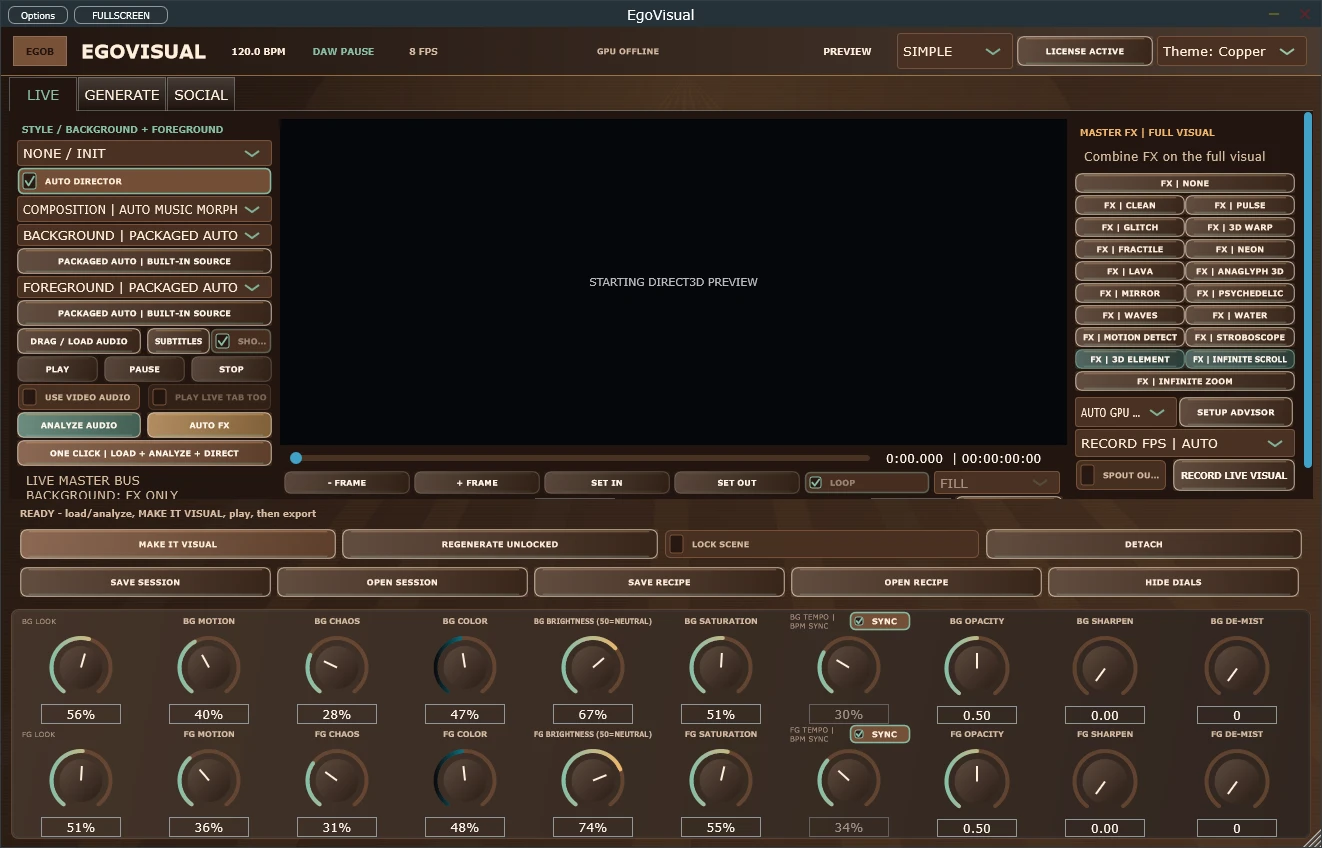
The current VST3 host policy disables decoded local photo/video source modes. Use the Windows standalone app when you need that media workflow, song analysis and the documented full video export path. A plugin preview and a finished exported video are different production steps.
EgoVisual remains a coming-soon preview. The Mac build provides a reduced software-rendered preview and has no video export. The product guide documents host and platform restrictions so you can assess the workflow before planning a release around it.
Common questions
Does the visualizer change the sound of my mix?
The documented EgoVisual VST3 audio path passes audio through unchanged. The incoming music drives the visuals.
Can I export a music video on Mac?
The current reduced Mac preview does not include video export. Use the documented Windows standalone workflow for video output.
Explore this workflow with EgoVisual.
Explore EgoVisual for audio reactive visuals, Auto Director scenes and music-video export on Windows. Standalone and VST3 workflows. Coming soon.