Music visuals · Practical production guide
Give your next release a visual identity.
For a producer, a music visualizer has two useful jobs: respond to the track while you work, and help turn a finished release into watchable content. Decide which job you need first, because the session setup and final deliverables are different.
EgoVisual · Coming soon · Workflow preview; purchases and new downloads are not open yet.
Choose the workflow by the result you need
- Watch the mix move: use the VST3 master-bus workflow for generated visuals reacting to DAW playback.
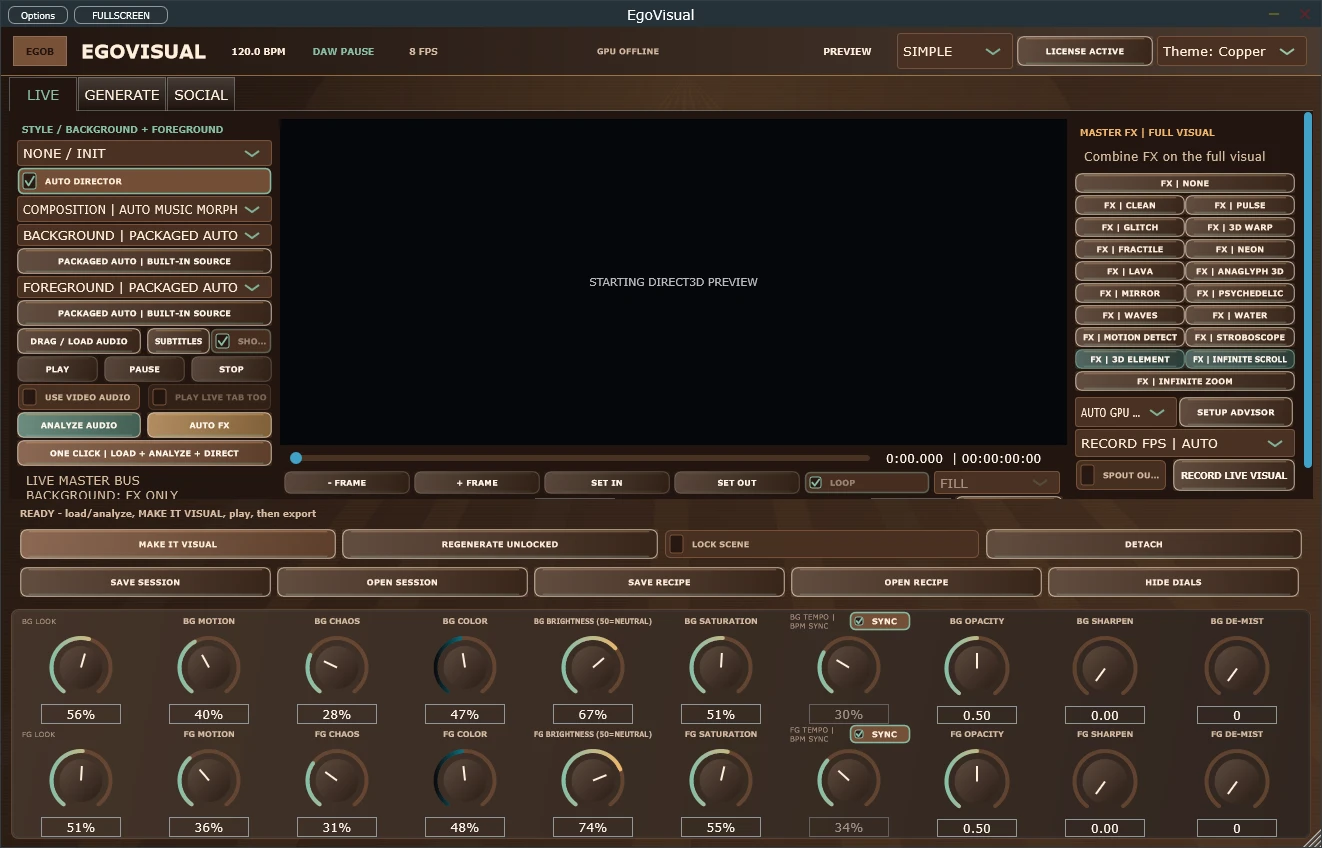
- Make a full-song video: load the finished audio in the Windows standalone app, analyze it and build the scene arrangement.
- Prepare release clips: choose a recognisable excerpt, check the output aspect and carry the same visual language into the short versions.
EgoVisual’s current VST3 has restrictions on decoded local photo/video sources. The Windows standalone workflow is the relevant one for full video production; the reduced Mac preview has no video export.
Build a small, repeatable release workflow
- Use the intended final mix, plus artwork or media that belongs to the release. Choose a palette and composition that still read clearly on a small screen.
- Generate the visual sequence and review the musical transitions. Keep a few memorable motifs rather than changing the look at every opportunity.
- Save reusable visual choices with Artist DNA. Save the complete session separately: Artist DNA does not embed the original audio, video or full arrangement.
- Use Creator Studio to compare takes. The documented CONTENT PACK workflow queues a full video, vertical 15/30/45-second clips, a teaser and supporting assets.
- Open the finished exports and check their framing, text, sound and endings before choosing which versions to share.
Make the short version stand on its own
A clip may be someone’s first encounter with the track. Pick a passage with a clear musical event and give it a visual opening that makes sense without the full-song introduction. Review a vertical version independently; a composition that reads well in landscape may need different placement in portrait.
Keep the rendered video alongside the session and source files so a later mix revision is manageable. EgoVisual is a coming-soon preview, and the public guide documents the current creator tools and platform limits. Start there when assessing whether it fits your release process.
Common questions
Can the same visual style carry across multiple releases?
Artist DNA stores a reusable visual language. Keep the complete sessions and their media separately because the style file is not a full project archive.
Should I work in the DAW or the standalone app?
Use the VST3 for in-session reactive visuals. Use the Windows standalone app for the documented song-analysis, local-media and full video-export workflow.
Explore this workflow with EgoVisual.
Explore EgoVisual for audio reactive visuals, Auto Director scenes and music-video export on Windows. Standalone and VST3 workflows. Coming soon.