Music visuals · Practical production guide
Build a visual sequence from your finished song.
Automatic music visualization can give you a first scene arrangement without animating every change by hand. Load a finished song, choose a visual direction and let audio analysis build a starting sequence. Then review the result as you would a first mix.
EgoVisual · Coming soon · Workflow preview; purchases and new downloads are not open yet.
Build the first sequence in EgoVisual
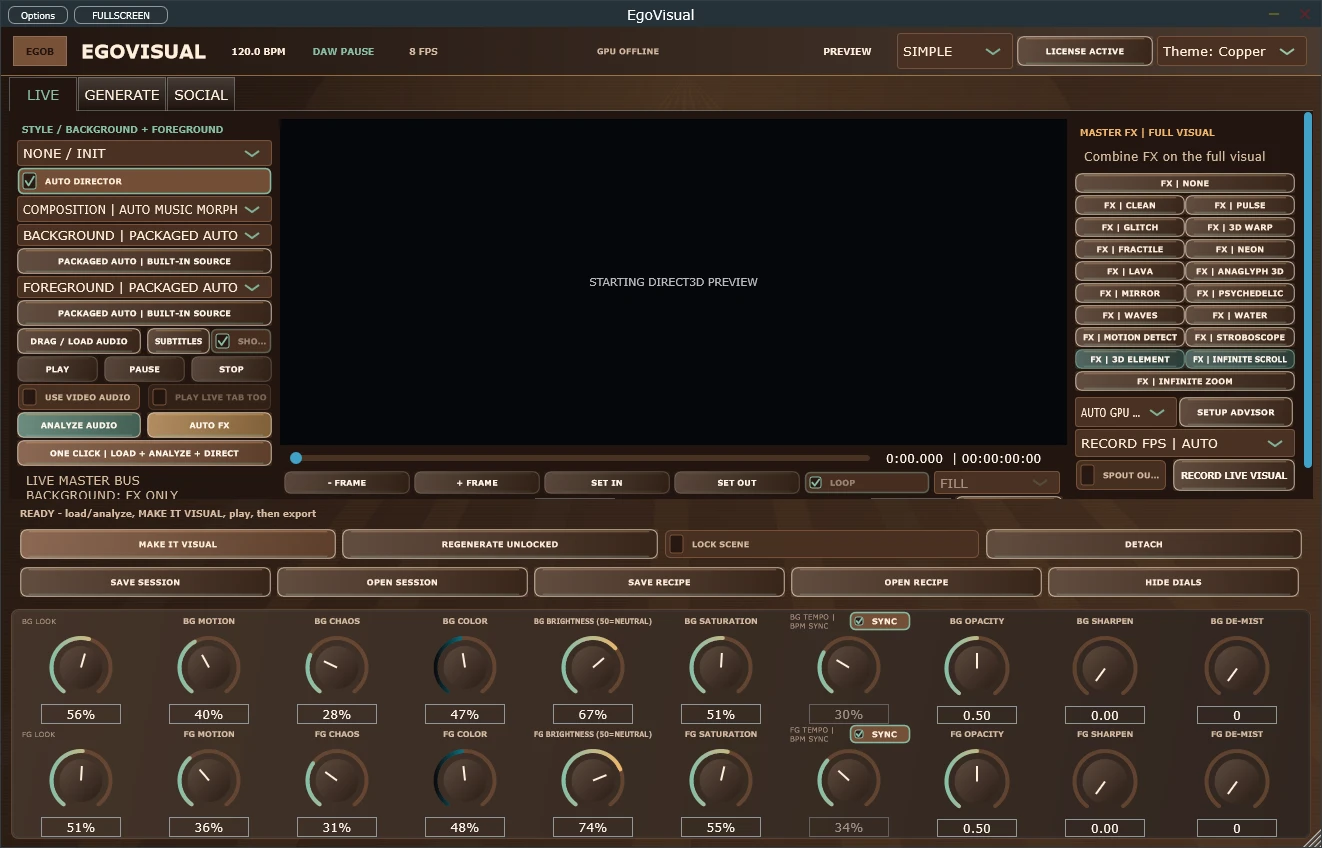
- Open the Windows standalone app and load your song on LIVE. Add optional source media if you have a visual theme in mind.
- Choose a Style and Composition. Run ANALYZE AUDIO, then MAKE IT VISUAL to build the music-aware scene schedule.
- Press PLAY and review the opening, a quiet section, the biggest change and the ending.
- For a longer arrangement, build the VISUAL SCORE in Generate. Refine section motifs, palettes and transitions, then lock the decisions you want to keep before regenerating unlocked parts.
- Save the session and export a short test before rendering the complete video. Keep the referenced media available for reopening the project.
Give automation a consistent direction
Auto Director shapes the show from the music while respecting explicit source choices and control limits. Choose a small set of colours and a motion style that suits the track. A calm verse and an energetic chorus can share the same visual identity without needing the same amount of movement.
Infinite Scroll and Infinite Zoom work on the complete composition. Try one change at a time so you can hear and see what drives the result. You can keep an effective section locked while exploring other sections, instead of rebuilding the whole visual whenever one transition needs work.
Export the version you actually reviewed
Use SOCIAL for a selected output aspect or EXPORT HQ MASTER for the standalone master path. Let the encoder finish and finalize the file before opening it. Resolution and GPU capability affect export speed, so a short test is useful before a full-length render.
Watch the exported file with sound: check the first beat, section changes, ending and any text. EgoVisual is still a coming-soon product; these steps describe its documented Windows workflow. The reduced Mac preview does not include video export.
Common questions
Is the complete video finished after one click?
MAKE IT VISUAL creates a scene schedule after analysis. Review the arrangement, refine the parts that need attention and export the final result.
Do I need the VST3 to make a video from a song?
No. The documented song-analysis and full video-export workflow is in the Windows standalone app.
Explore this workflow with EgoVisual.
Explore EgoVisual for audio reactive visuals, Auto Director scenes and music-video export on Windows. Standalone and VST3 workflows. Coming soon.